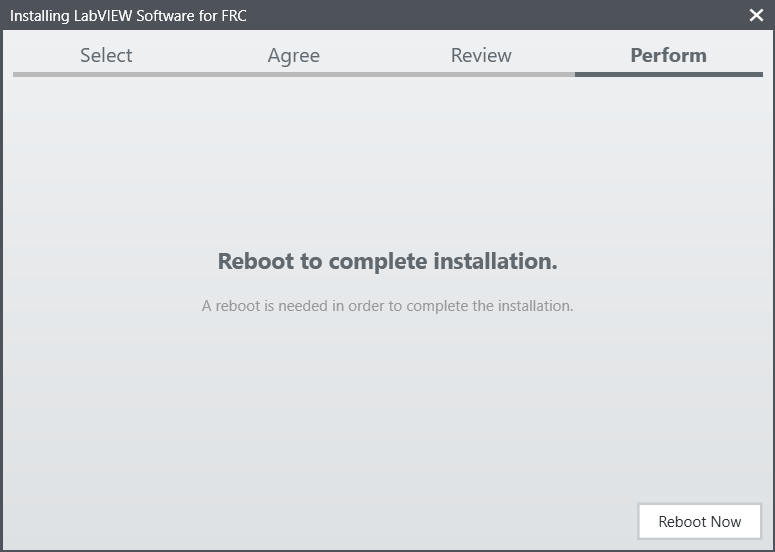
Instalando LabVIEW para FRC (LabVIEW apenas)

Note
Esta instalação é para times que programam em LabVIEW ou usam o NI Vision Assistant apenas. Times que utilizam C++ e Java que não estão utilizando estes recursos não precisam instalar a partir do DVD e devem prosseguir para Instalando FRC Game Tools.
O tempo para download e instalação varia muito de acordo com as especificações de conexão do computador, no entanto, note que esse processo envolve o download e a instalação de um arquivo grande e provavelmente levará pelo menos uma hora para ser concluído.
Desinstale as Versões Antigas (Recomendado)
Note
Se você deseja continuar utilizando cRIOs você precisará manter uma instalação do LabVIEW para FRC 2014. A licença para o LabVIEW para FRC 2014 foi estendida. Embora essas versões possam coexistir em um único computador, essa não é uma configuração extensivamente testada.
Antes de instalar a nova versão do LabVIEW, é recomendado remover as versões antigas. A nova versão provavelmente coexistirá com a versão antiga, porém todos os testes foram feitos apenas com a FRC 2020. Certifique-se de fazer um backup de qualquer código do time localizado no diretório “User\LabVIEW Data” antes de desinstalar. Em seguida clique em Iniciar >> Adicionar ou Remover Programas. Localize “National Instruments Software” e selecione “Uninstall”.

Selecione Componentes para Desinstalar
Na caixa de diálogo exibida, selecione todas as entradas. A maneira mais fácil de fazer isso é desmarcar a caixa de seleção “Products Only” e marcar a caixa de seleção à esquerda de “Name”. Clique em “Remove”. Aguarde o desinstalador concluir e, se solicitado, reinicie o computador.
Warning
Essas instruções assumem que nenhum outro software da National Instruments esteja instalado. Se você tiver outro software da National Instruments instalado, é necessário desmarcar o software que não deve ser desinstalado.

Getting LabVIEW installer
Either locate and insert the LabVIEW USB Drive or download the LabVIEW 2020 installer from https://www.ni.com/en-us/support/downloads/drivers/download.labview-software-for-frc.html
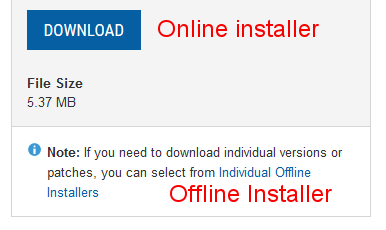
If you wish to install on other machines offline, do not click the Download button, click Individual Offline Installers and then click Download, to download the full installer.
Note
This is a large download (~8GB). It is recommended to use a fast internet connection and to use the NI Downloader to allow the download to resume if interrupted.
Installing LabVIEW
National Instruments LabVIEW requires a license. Each season’s license is active until January 31st of the following year (e.g. the license for the 2020 season expires on January 31, 2021)
Teams are permitted to install the software on as many team computers as needed, subject to the restrictions and license terms that accompany the applicable software, and provided that only team members or mentors use the software, and solely for FRC. Rights to use LabVIEW are governed solely by the terms of the license agreements that are shown during the installation of the applicable software.
Welcome
Starting Install
Run the downloaded exe file to start the install process. Click “Yes” if a Windows Security prompt
Right click on the downloaded iso file and select mount. Run install.exe from the mounted iso. Click “Yes” if a Windows Security prompt
Note
other installed programs may associate with iso files and the mount option may not appear. If that software does not give the option to mount or extract the iso file, then follow the directions in the “Offline Installer (Windows 7, 8, & 8.1)” tab.
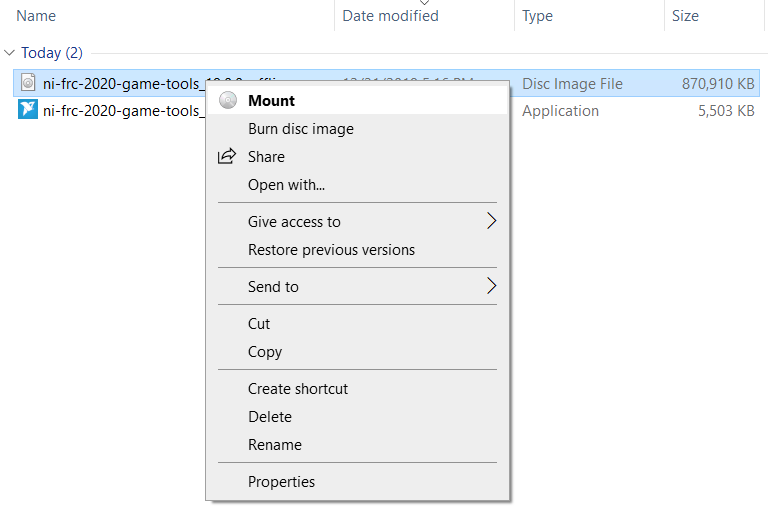
Install 7-Zip (download here). As of the writing of this document, the current released version is 19.00 (2019-02-21). Right click on the downloaded iso file and select Extract to.

Run install.exe from the extracted folder. Click “Yes” if a Windows Security prompt Click “Yes” if a Windows Security prompt appears.
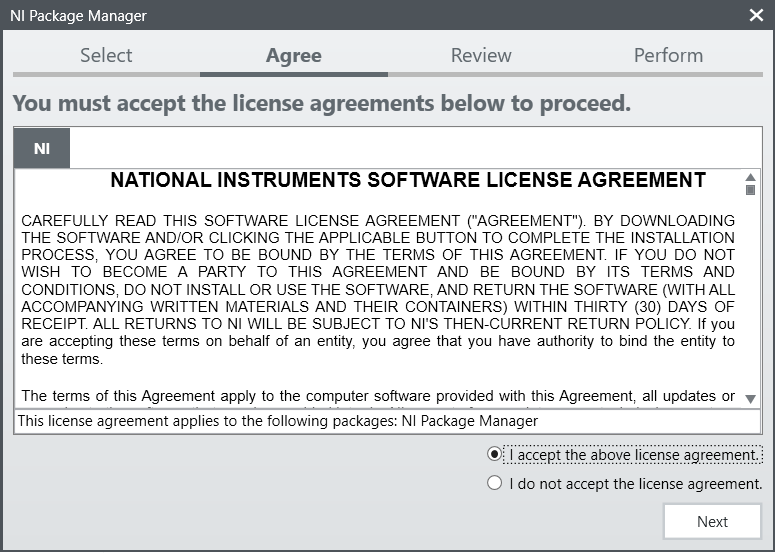
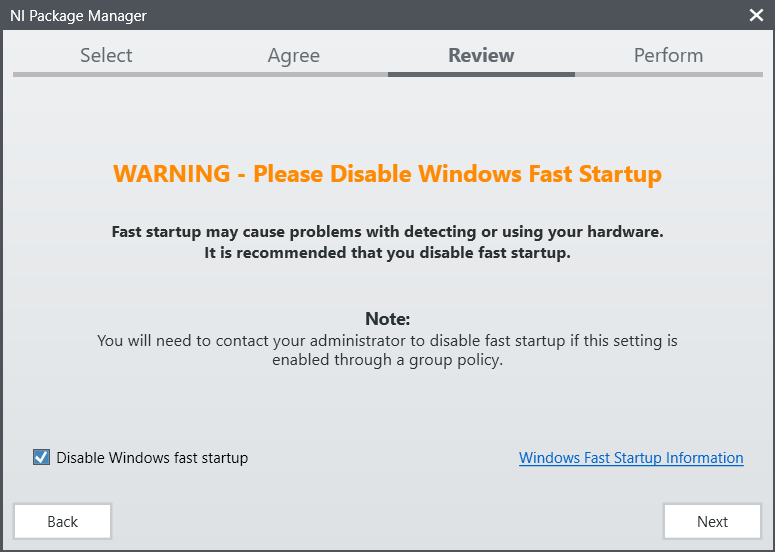
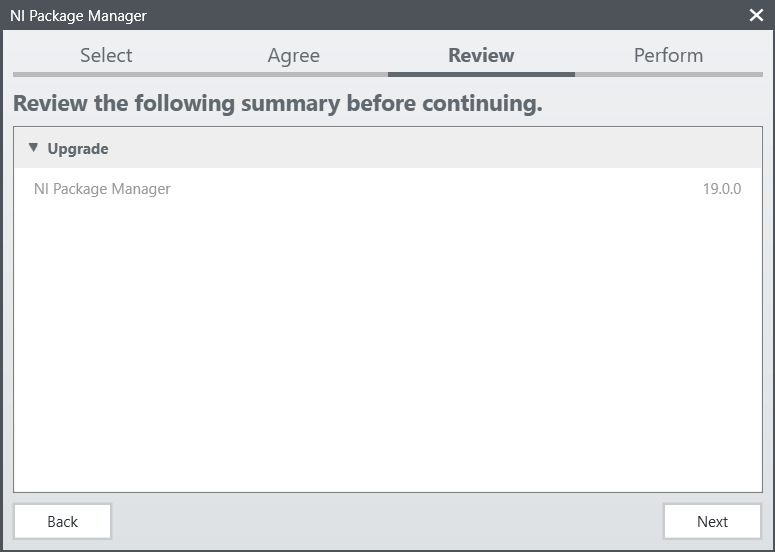
NI Package Manager Installation

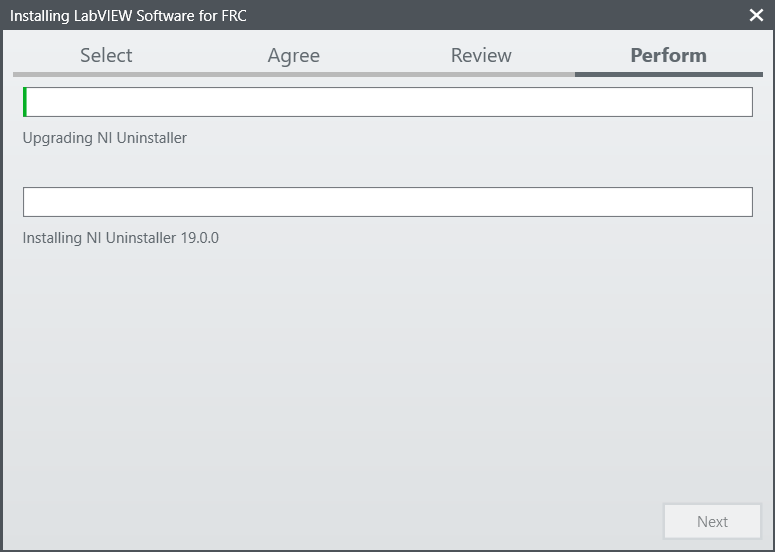
Installation progress of the NI Package Manager will be tracked in this window

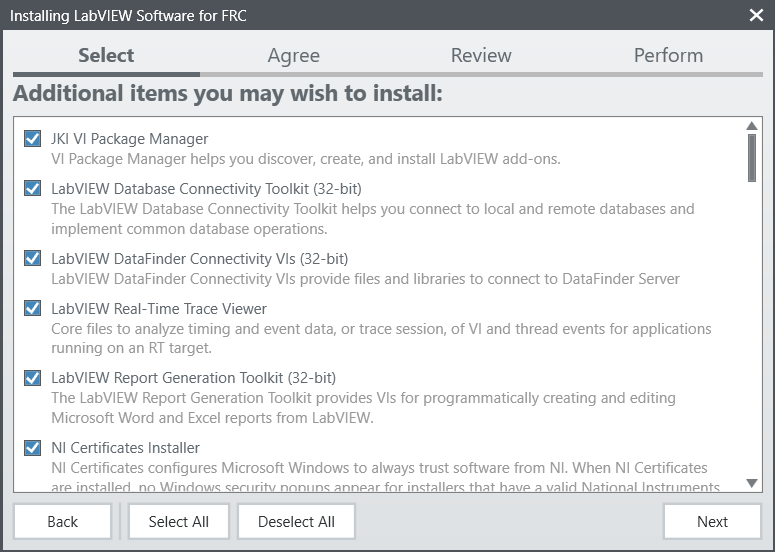


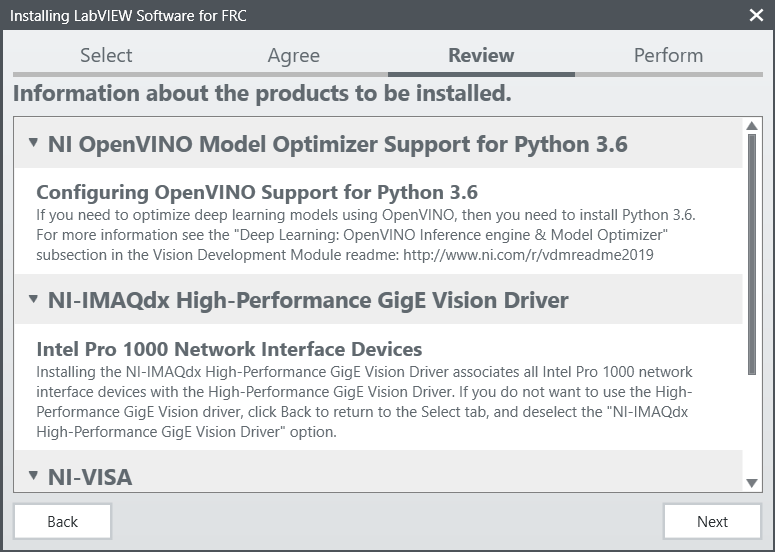

NI Update Service
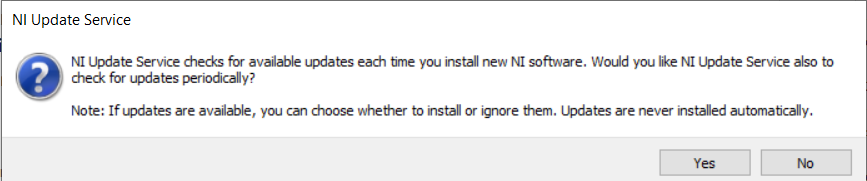
You will be prompted whether to enable the NI update service. You can choose to not enable the update service.
Warning
It is not recommended to install these updates unless directed by FRC through our usual communication channels (FRC Blog, Team Updates or E-mail Blasts).
NI Activation Wizard
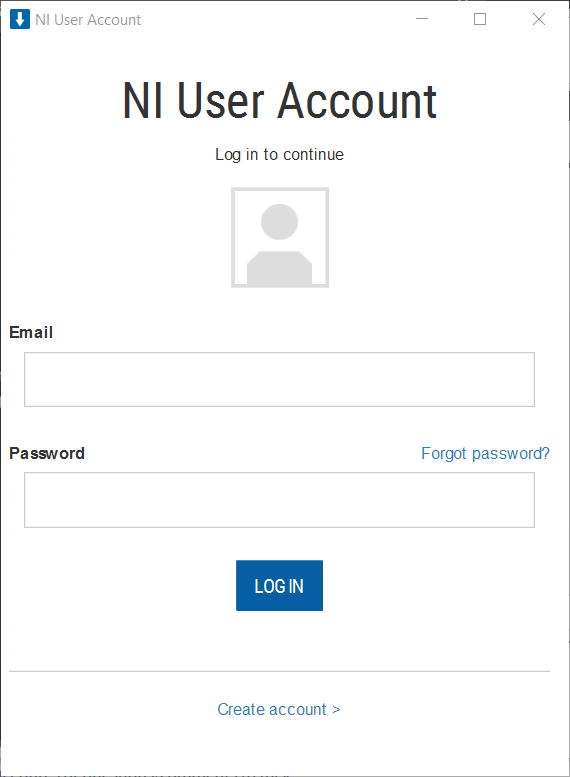
Log into your ni.com account. If you don’t have an account, select ‘Create account’ to create a free account.
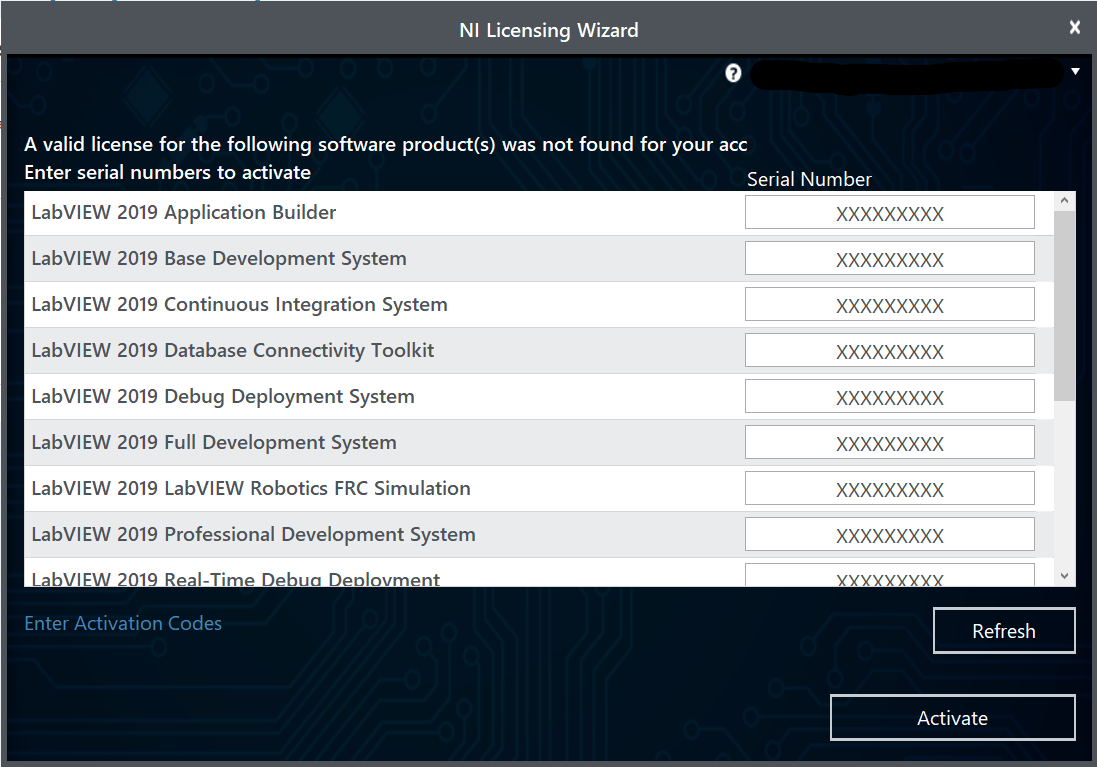
The serial number you entered at the “User Information” screen should appear in all of the text boxes, if it doesn’t, enter it now. Click “Activate”.
Note
If this is the first time activating the 2020 software on this account, you will see the message shown above about a valid license not being found. You can ignore this.
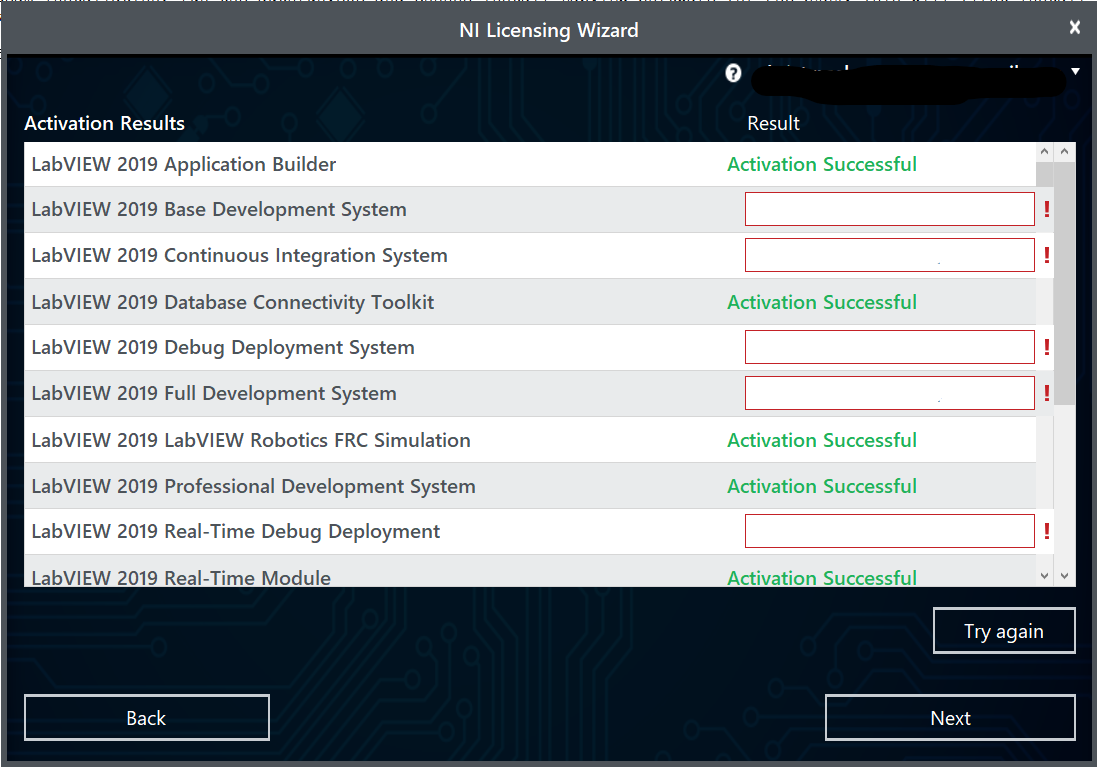
If your products activate successfully, an “Activation Successful” message will appear. If the serial number was incorrect, it will give you a text box and you can re-enter the number and select “Try Again”. The items shown above are not expected to activate. If everything activated successfully, click “Next”.
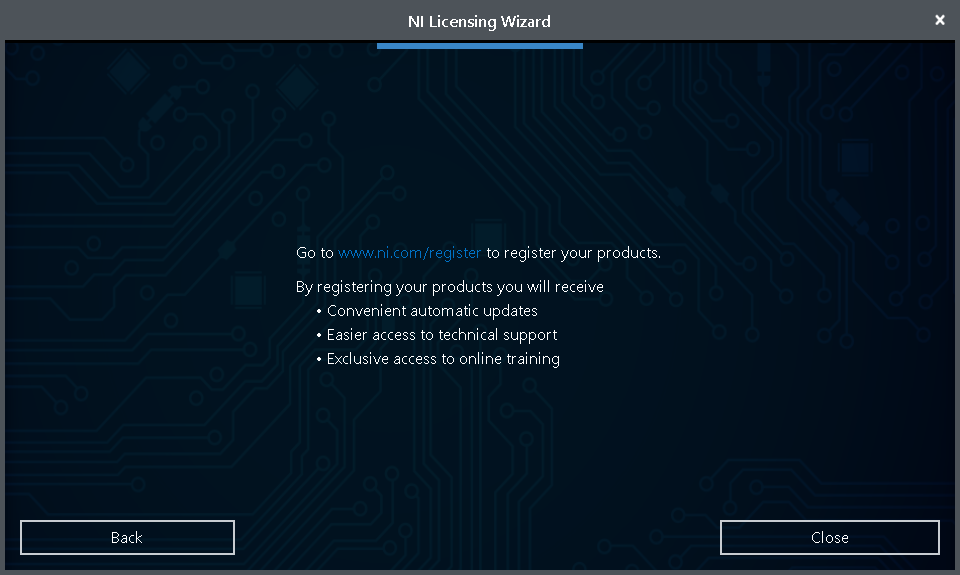
Click “Close”.